Articles
My Automated Photo Workflow using Google Photos and Elodie

Jaisen Mathai
December 7, 2015 · 8 min read
This post was not written with or by AI.
Download Elodie, the EXIF-based photo organizer app I made to manage my photos, and easily replicate the workflow in this post. You can also view the open source command-line version on GitHub.
Since I wrote this, Google Photos and Google Drive have stopped working together. I’m now using a Google Photos plugin for Elodie I wrote to simulate the same functionality which existed prior to this change.
This is a story of how two complete strangers, Google Photos and Elodie, with their own lives and ambitions met and fell in love. It’s the last of three posts on how I created an automated workflow for my photos and videos. You should understand why I wanted an automated workflow and how the software I wrote (Elodie) achieves that.
This post is long despite my efforts to keep it short. There are a lot of facets which coalesce into my workflow but I think you’ll find it worthwhile.
Let’s get started, shall we?
Google Photos is spectacular; something I can’t recall saying about another online photo service. The best features are search and Assistant.
Sharing photos and videos taken by me or created by Assistant is really easy. You can share the photos themselves or you can share links which work well for videos.
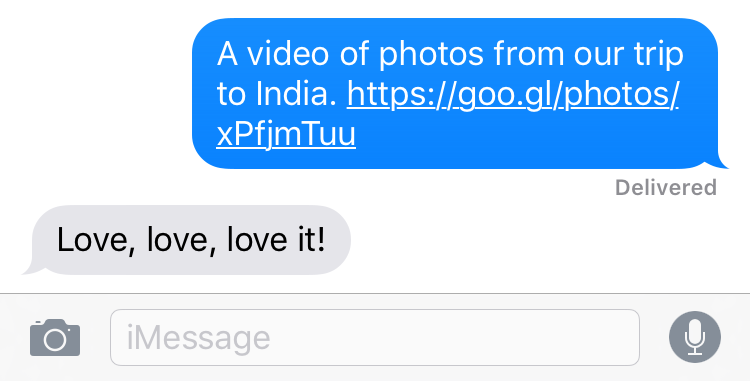
Search works exceptionally well. Training Google Photos to recognize people in your photos requires virtually no effort and it’s really accurate. Kudos to the team for making search actually work on a personal photo library.
Assistant is a feature of Google Photos which continuously combs through your photos looking for fun things to make for you. I’ve had it make collages, animated gifs, panoramas and movies. What it creates is almost always awesome. Receiving a notification that Assistant has created something for me continues to be exciting. Paul Stamatiou summed it up well.
Still LOVING Google Photos. (and still uploading). Assistant is always making me cool shit. It’s my lil’ butler. pic.twitter.com/WYqr89UuBw
Elodie was created to automate the burden of organizing and archiving my photo library. It does this by relying entirely on EXIF instead of a proprietary database and keeping the folder structure in sync with what’s in EXIF.
Elodie does a lot of things well but 3 of them are the most important.
Google Photos and Elodie work entirely independent of one another. But it turns out they also compliment one another nearly perfectly.
I’d love to use Google Photos by itself but it fails to future-proof my photo library. That’s where Elodie comes in.
Combining Google Photos and Elodie means I have amazing search, machine learning, artificial intelligence and sharing combined with a future-proof archive of my entire photo and video library.
The workflow starts with a single manual step and the rest is fully automated. The first manual manual step can be automated but I prefer to curate the photos which end up in my library. Here’s what the workflow looks like.
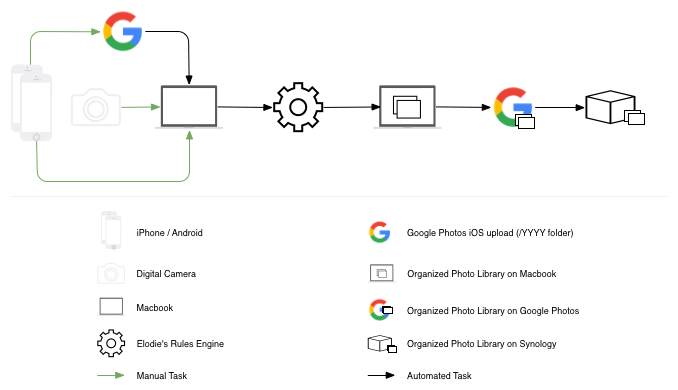
This is how it works. I install the Google Drive desktop app and set Google Photos and Google Drive to work together. Then I ask Elodie to organize my photos into ~/Google Drive/Google Photos. At this point all of my photos, which Elodie has organized, are accessible through Google Photos.
As the diagram shows, I’m able to replicate a copy of my entire photo and video library to my Synology at home giving me 3 distributed copies of my photo library that’s automatically kept in sync.
That’s pretty awesome but there are some advanced uses which really puts my workflow over the top.
I mentioned that Assistant creates some great pieces from my photos. The downside is that they are not available outside of the Google Photos app. It’s of little value to me unless I can archive them into my library; something Google Photos doesn’t easily support yet.
My favorite creations from Assistant are the collages and movies. There’s a lot of smarts going on behind the scenes. The photos selected are always good which results in creations I continually want to save back into my library.
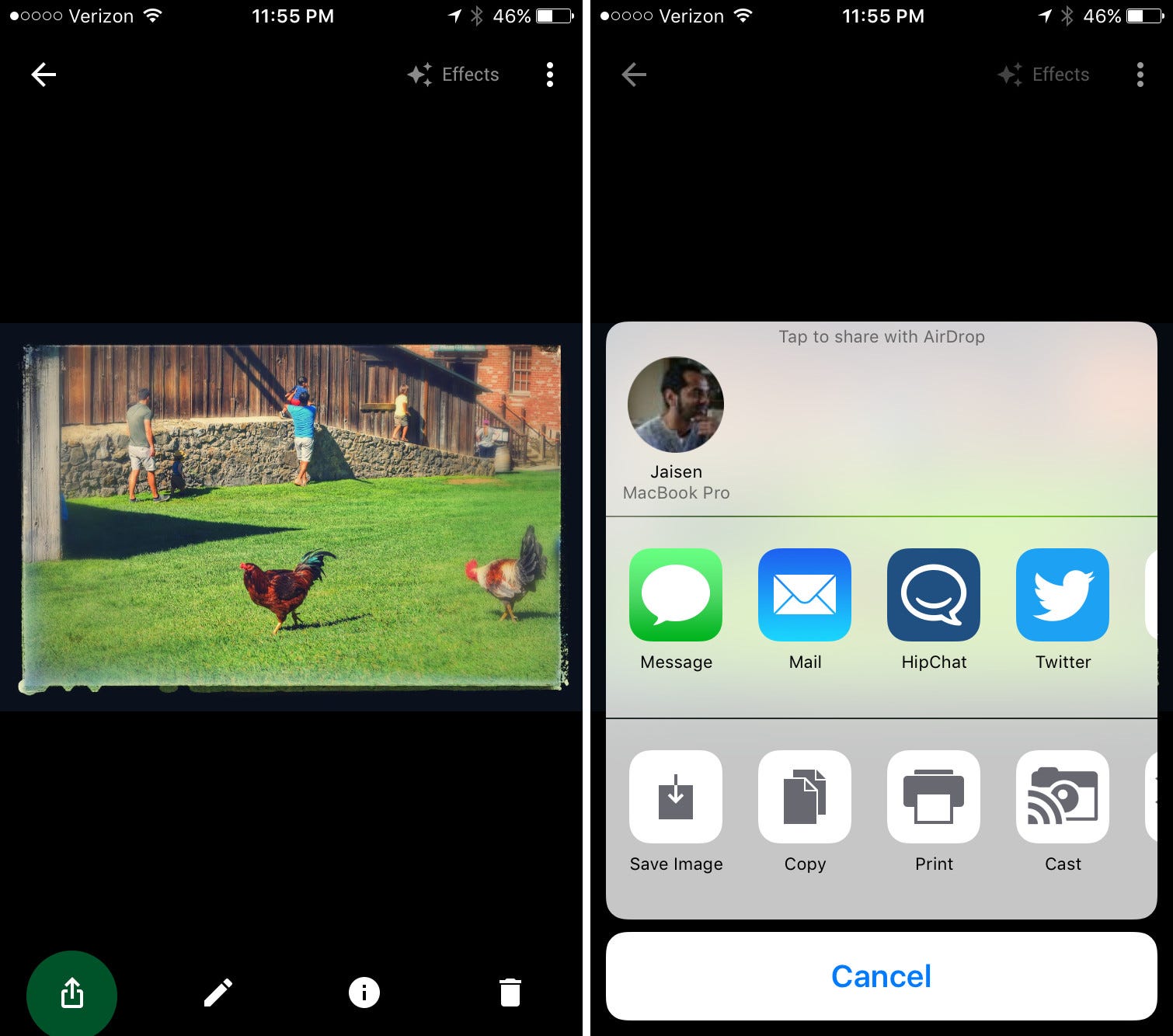
Google Photos does support the ability to share Assistant’s creations. This means I’m able to AirDrop them to my MacBook which triggers Elodie organizing the photo or video into my library. All of it works almost too well.
I was very pleased to find out Google Photos retains the date and location of the photos it uses and puts them in the EXIF. That attention to detail lets Elodie organize photos precisely where they belong.
Elodie lets you group photos within a folder into an album. Since Elodie only understands EXIF she does this by adding a custom EXIF tag. Now when Elodie processes the photo or video it will be placed in a folder named the same as the album.
Google Photos also has a notion of albums (sometimes called Collections in the UI). But these albums do not exist outside of Google Photos which you may have guessed by now have little value to me.
The great part is that Google Photos understands the folder structure enough to group photos in a folder together. You can search or view photos in an album with Google Photos’ great visual UI. The option to share is present but has never worked for me. I don’t know if this is a bug or not but it’s minor in the bigger picture of what I’m able to do.
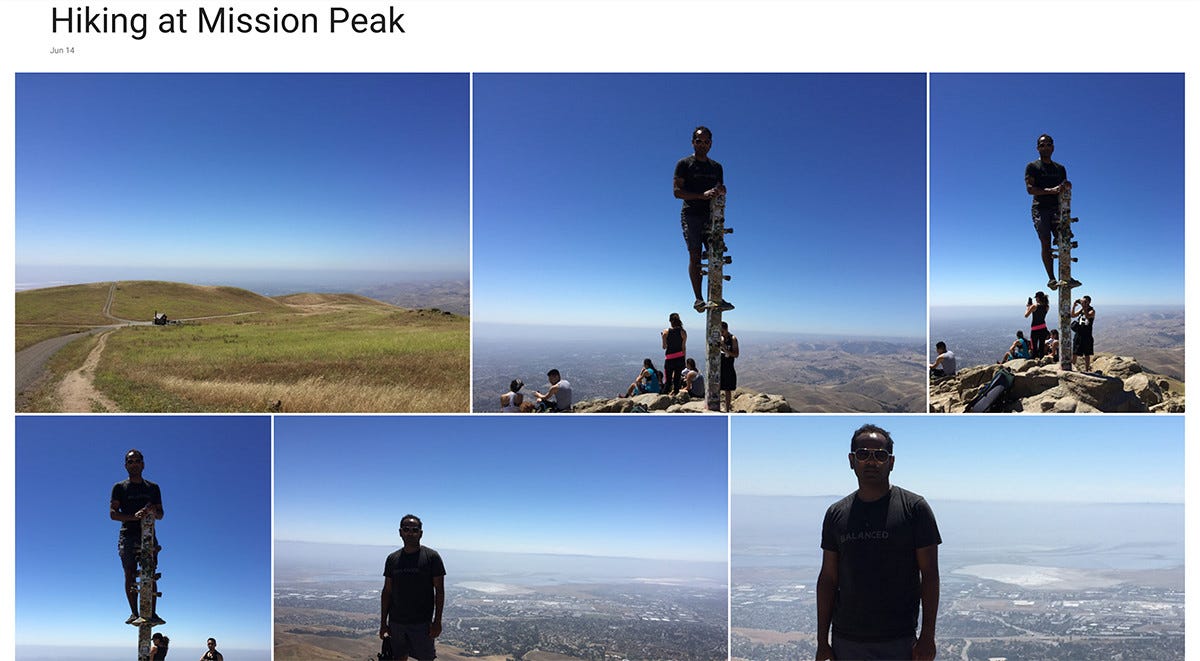
My preferred method of getting photos off my phone and into my library is using AirDrop. Turns out my laptop isn’t always on and it’s not always near me. Thankfully Elodie can watch arbitrary folders to trigger her rules engine and Google Photos deterministically chooses where to upload photos.
This means I simply need to ask Elodie to watch ~/Google Drive/Google Photos/2016 and I’m able to use the Google Photos app the same way I use AirDrop. The workflow which gets enacted is a bit different but the end result is identical. See the workflow diagram earlier to understand the differences.
I can get photos and videos from my phone and onto my laptop without being in proximity to my laptop. Elodie then organizes them.
It’s been a long unrealized dream of mine to replace the Photos app on my phone with something that was as good or better while allowing me to not run out of space. Lots of apps promise this but I haven’t been able to do it until this combination of Google Photos and Elodie.
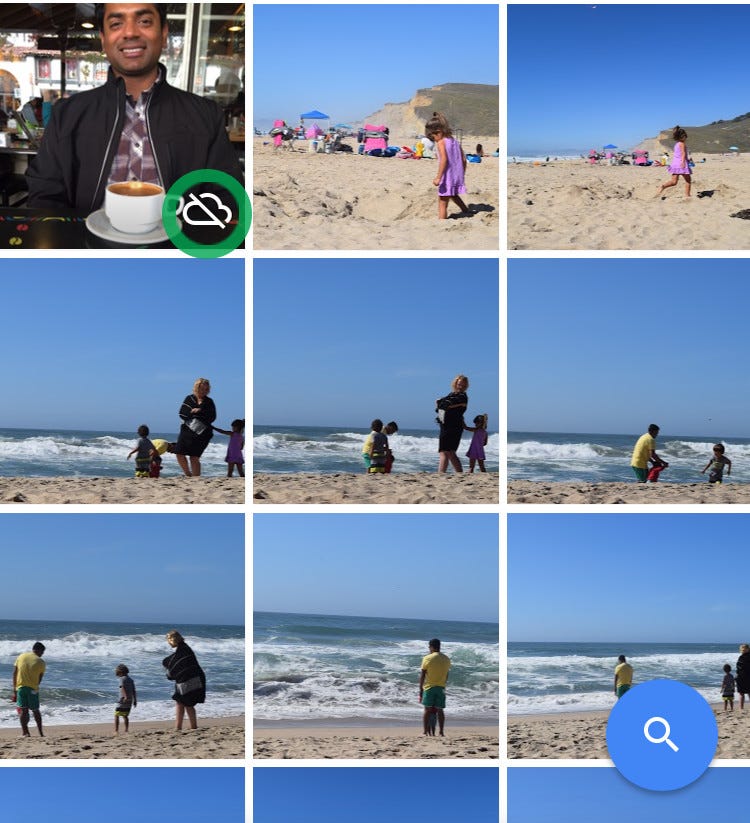
In the Google Photos iOS app’s main view it merges the photos on your Camera Roll with the ones in Google Photos. A small cloud icon on the thumbnail indicates that it has not yet been synced to Google Photos.
There’s some brilliance wrapped up in that cloud icon. It gets a little tricky since I don’t have any single way to get a photo or video into my library. I might AirDrop it from my Camera Roll or upload it through the Google Photos app. Either way it’s an offline workflow which invokes Elodie on my laptop to move it to its final destination.
Let’s take the example of the screenshot above. If I AirDrop that photo of myself with a latte to my laptop it will get organized by Elodie into my Google Photos folder. That photo gets synced via Google Drive and when I come back to my Google Photos app the cloud icon will be gone; even though I never uploaded the photo via the Google Photos app.
I couldn’t really ask Google Photos and Elodie to play together any better.
I’ve spent a lot of time over the past decade coming up with something that helps ease the burden of having tens of thousands of photos. This current setup is my holy grail. It turned out an order of magnitude better than I had expected.
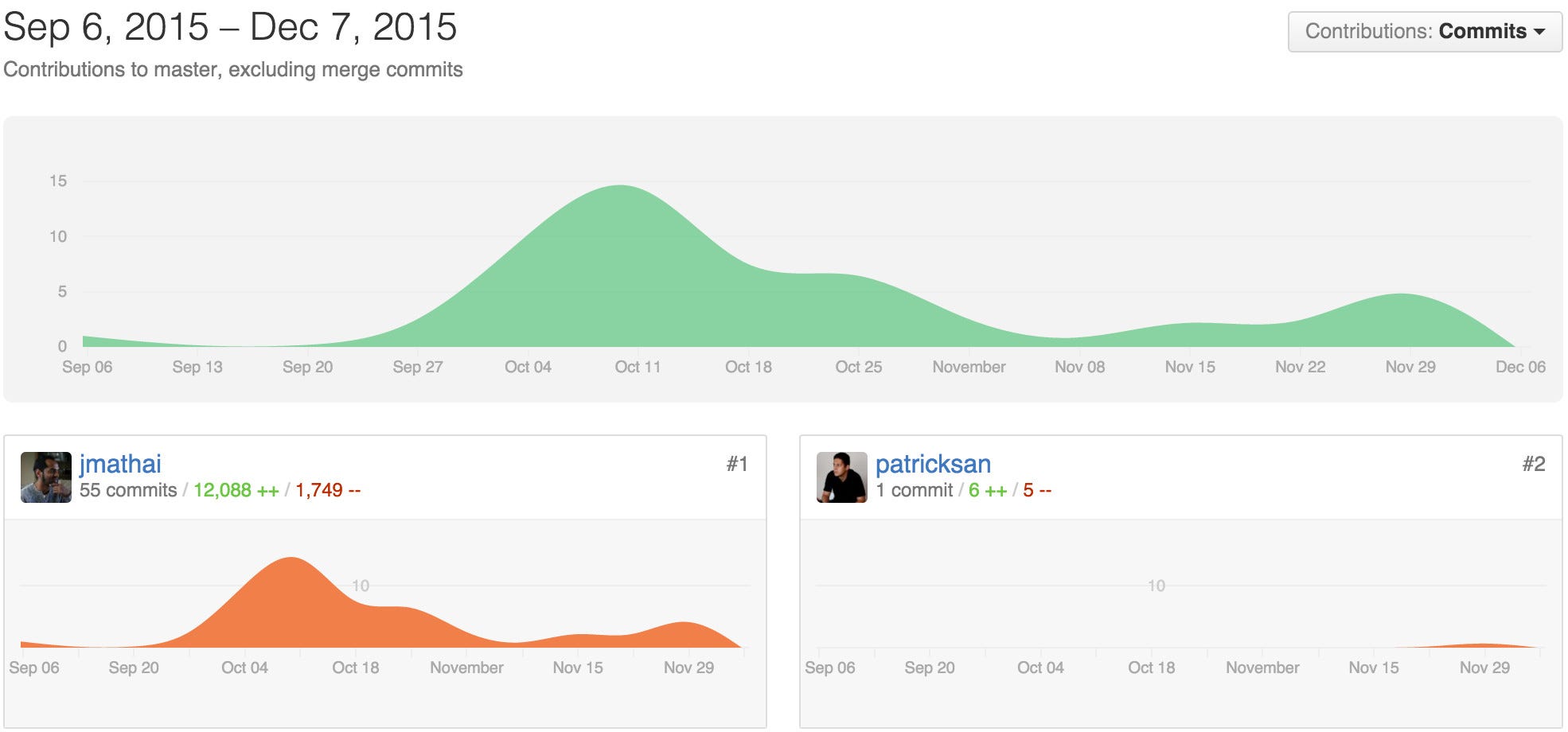
Elodie has evolved quite a bit since I started using her two months ago and now I consider her indispensable. You can find Elodie on Github and help me make her even better.
Make sure you read my other posts in this series.
My Automated Photo Workflow using Google Photos and Elodie was originally published in The Startup on Medium, where people are continuing the conversation by highlighting and responding to this story.